

Description
Download Bandicam Screen Recorder – Free Screen Capture Tool for Windows, Mac, Android & iOS
Bandicam Screen Recorder is a powerful, lightweight, and secure screen capture software designed for users who need to record their PC screen with ease. Whether you're a gamer, educator, or content creator, this versatile tool enables you to capture high-quality video and audio from your screen in real time. With support for DirectX, OpenGL, and Vulkan graphics, Bandicam delivers smooth recording even during intense gaming sessions. The software allows you to record full-screen, specific windows, or custom screen areas with customizable frame rates, codecs, and output formats. You can also add narration using your PC’s microphone and export files in MP4, AVI, or WMV formats. While the free version includes a watermark, it remains a top choice for casual users. For professionals, the premium version unlocks advanced features like lossless encoding, watermark removal, and scheduled recording. Bandicam is compatible with Windows 7 through Windows 11 and offers a simple, intuitive interface that makes screen recording accessible to beginners and experts alike.
Key Features of Bandicam Screen Recorder
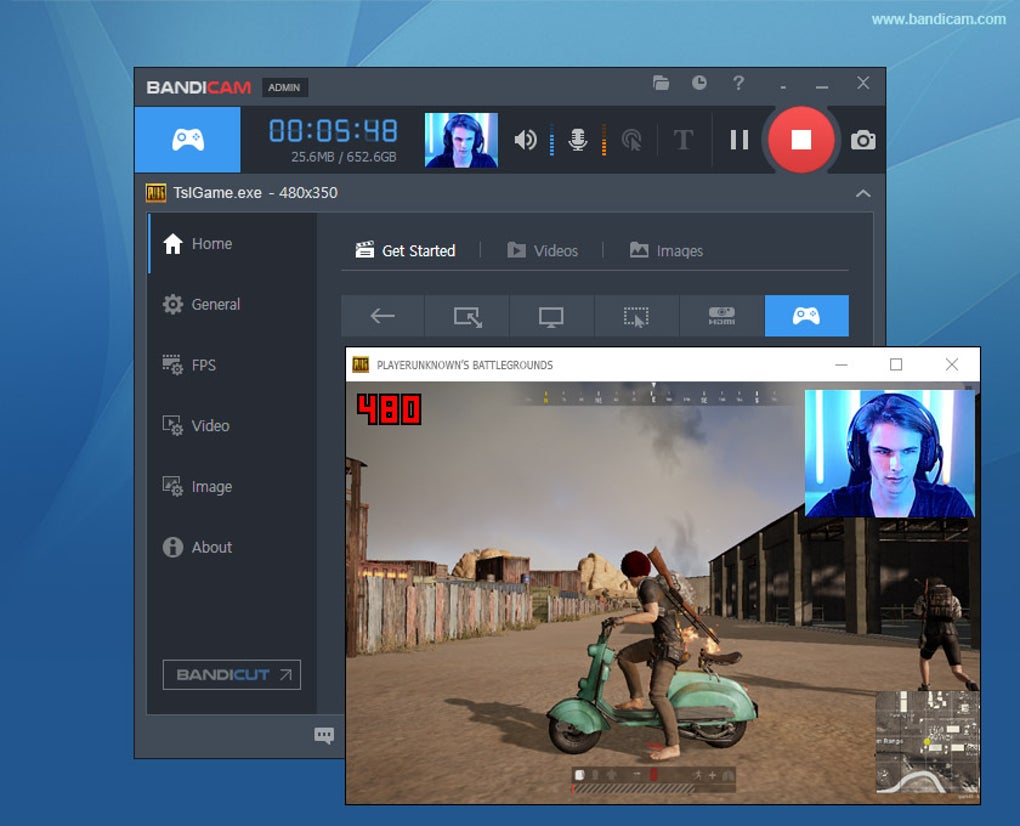
Bandicam Screen Recorder stands out in the crowded market of screen recording tools due to its rich feature set and high performance. One of the most notable features is its ability to record games using advanced graphics APIs like DirectX, OpenGL, and Vulkan. This ensures minimal lag and maximum compatibility with modern games such as World of Warcraft, Minecraft, and Skyrim. The software supports recording at up to 1080p resolution with variable frame rates, allowing you to capture smooth gameplay or detailed presentations without compromising quality.
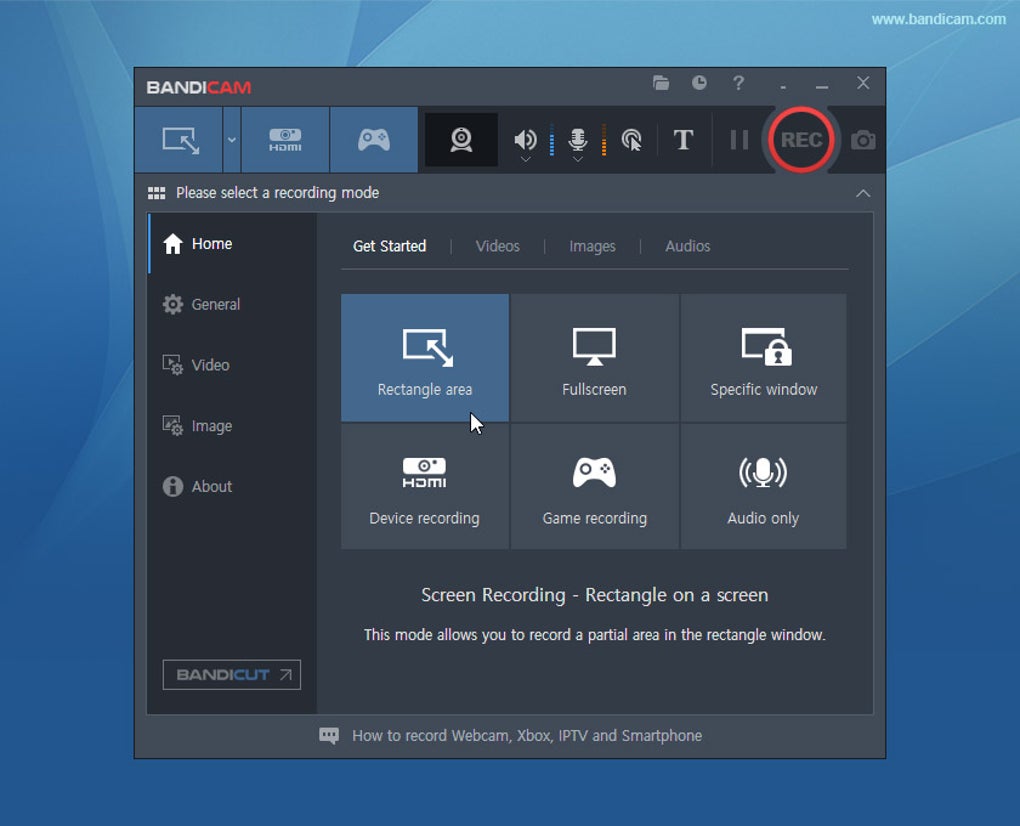
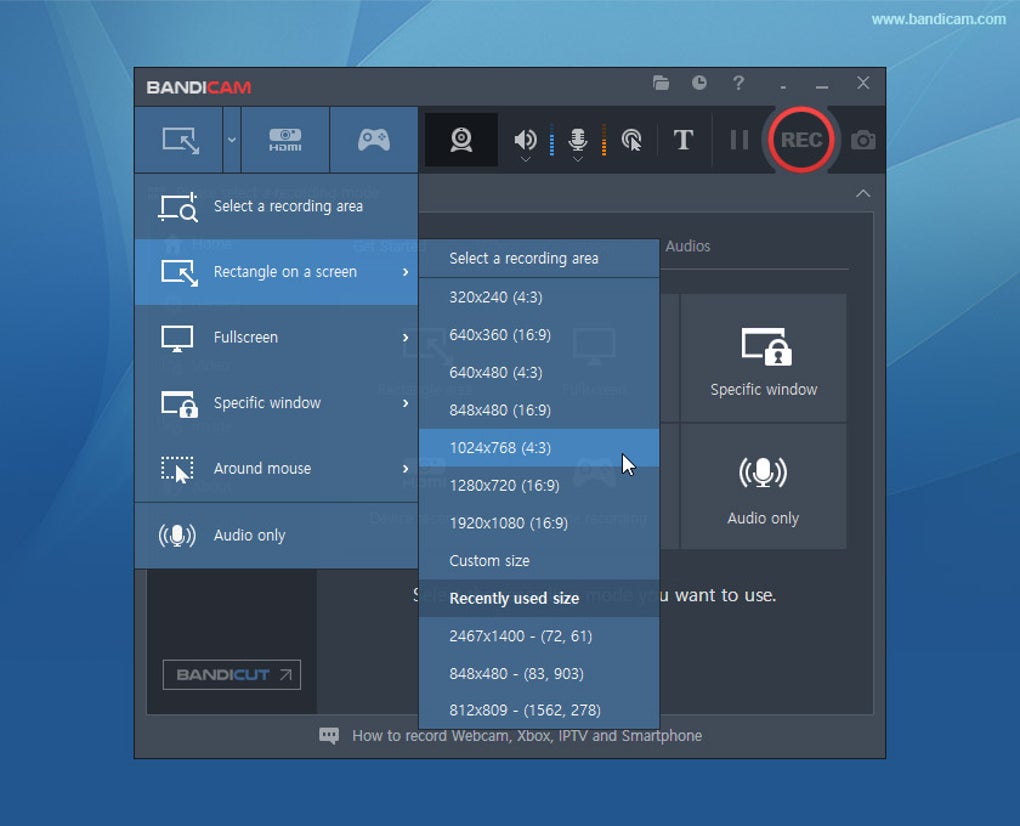
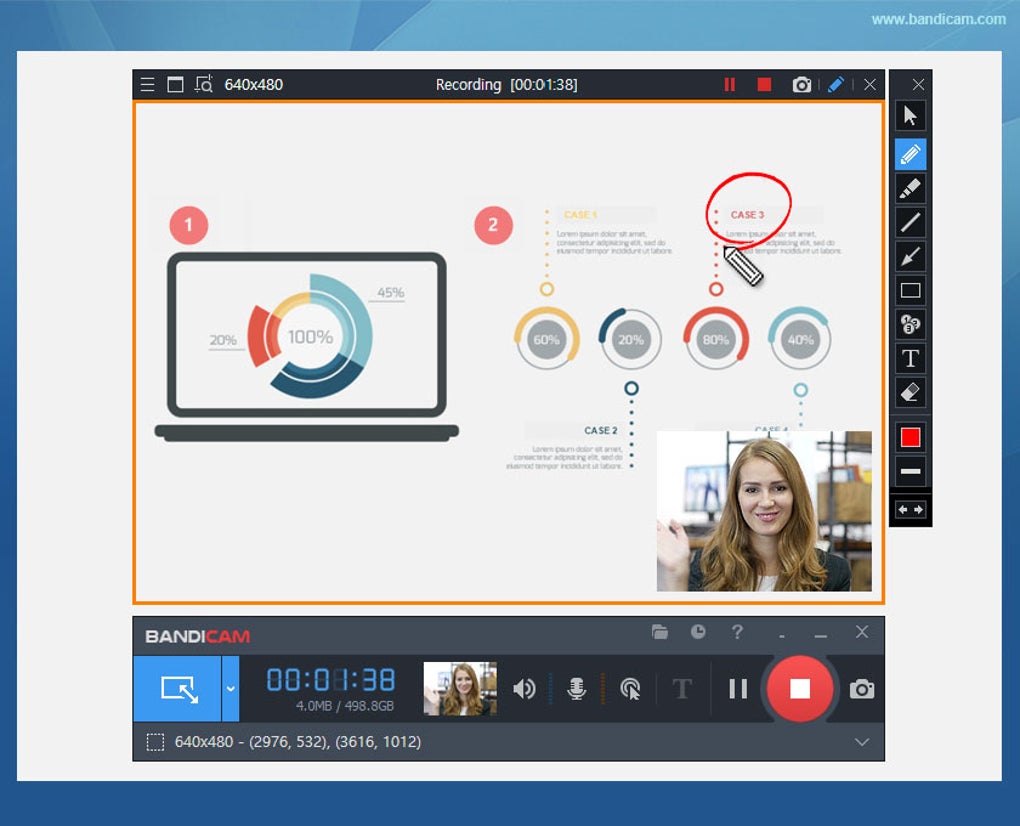
Another standout feature is the flexible recording area selection. Users can choose to record the entire screen, a specific window, or a custom-defined region. The tool also offers pre-set aspect ratios like 16:9 and 4:3, making it ideal for creating YouTube videos or educational content. You can easily resize the recording area manually or use keyboard shortcuts for quick access. For those who want to create time-limited recordings, Bandicam includes a built-in timer function that starts and stops recording automatically after a set duration.
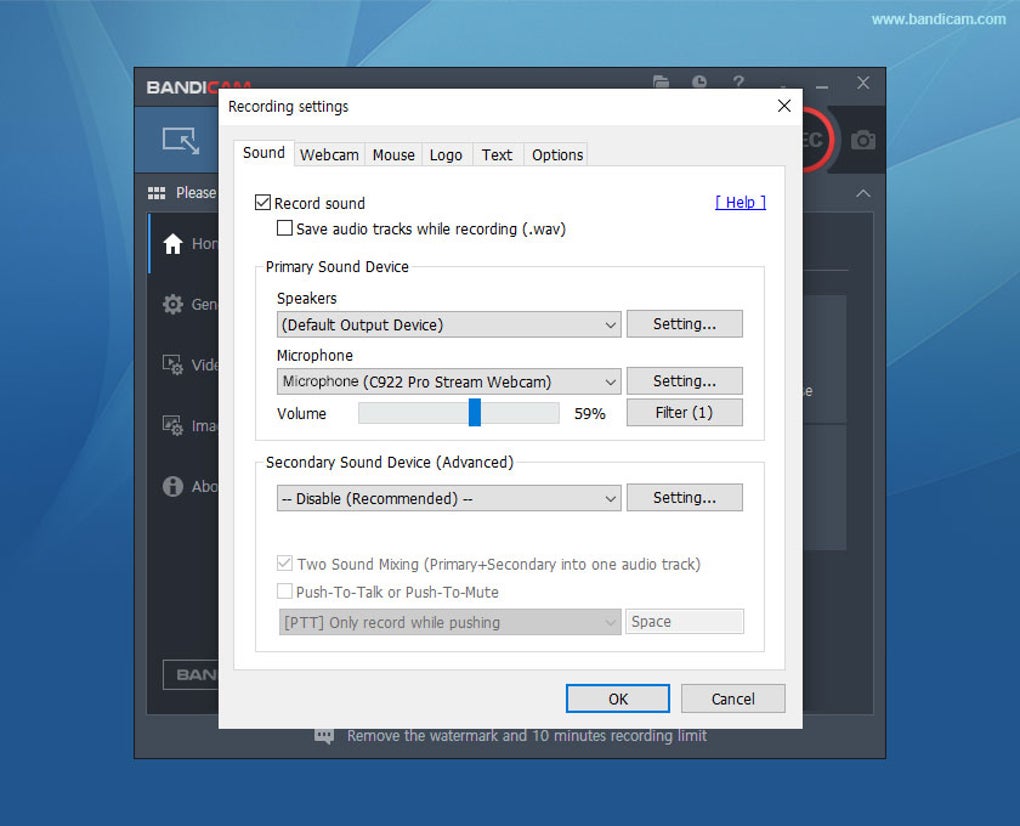
Audio recording is another strong suit. Bandicam captures both system audio and microphone input simultaneously, perfect for narrating tutorials or recording voiceovers during webinars. The software supports various audio codecs, including AAC and MP3, ensuring compatibility across platforms. Additionally, it allows you to take screenshots in JPG, PNG, or BMP formats directly from the recording interface. With built-in sharing options, you can upload your videos directly to YouTube, Vimeo, or other platforms—making content distribution seamless.
Installation & Usage Guide for Bandicam Screen Recorder
Getting started with Bandicam Screen Recorder is quick and straightforward. First, visit the official Bandicam website and download the installer for your operating system. The download is secure and free from malware, ensuring a safe installation process. Once downloaded, run the installer and follow the on-screen prompts. The setup wizard is user-friendly and typically takes less than two minutes to complete.
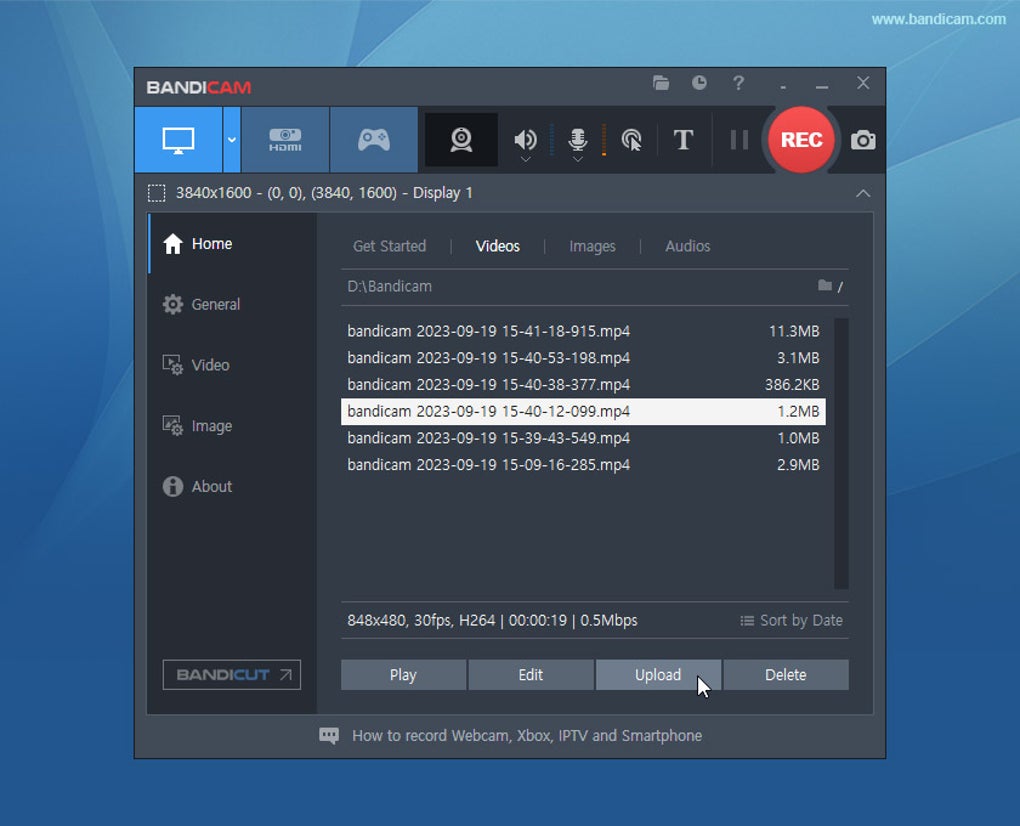
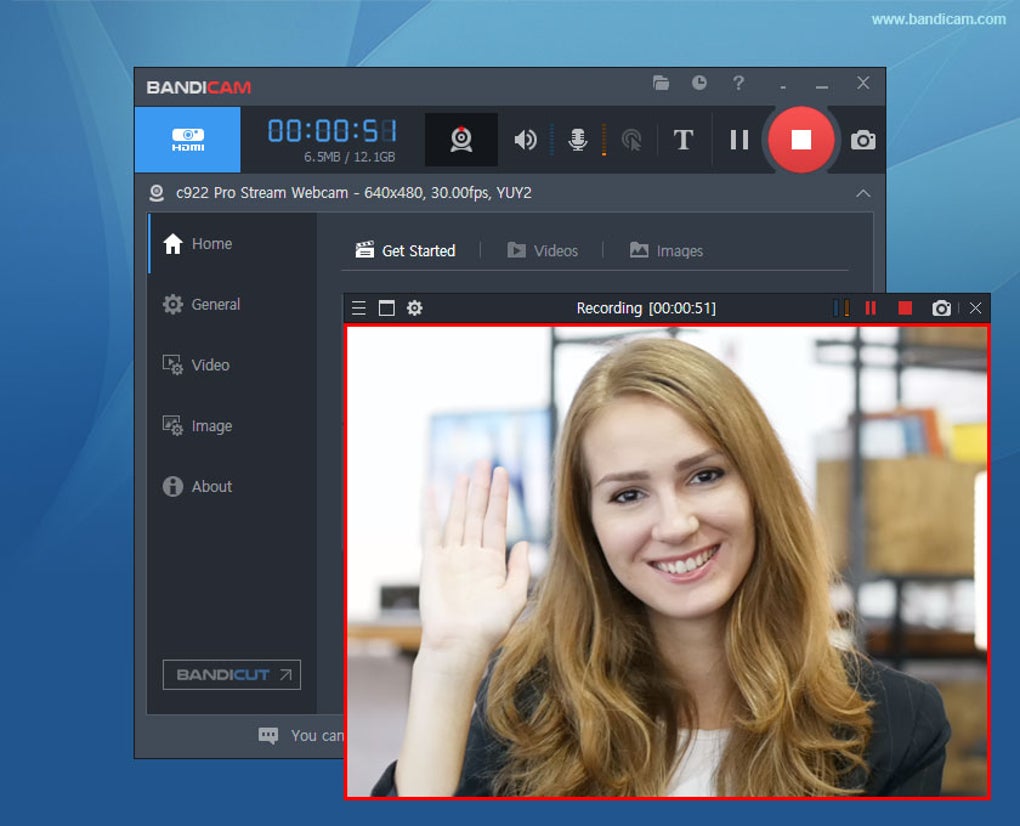
After installation, launch Bandicam from your desktop or Start menu. The minimalist interface is clean and intuitive, with clear icons for recording, settings, and playback. To begin recording, click the red “Record” button or use your assigned keyboard shortcut (default is F12). Before recording, you can customize your settings by clicking the gear icon. Here, you can adjust the recording area, frame rate (from 15 to 60 FPS), video codec (H.264, MPEG-4, etc.), audio source, and output file format.
For gaming or high-performance tasks, enable the “DirectX/OpenGL/Vulkan” recording mode under the “Advanced” tab to ensure compatibility and smooth playback. If you’re recording a tutorial, consider enabling the “Mouse Click Effects” and “Cursor Highlight” options to make your actions more visible. Once everything is set, start recording and perform your desired actions on the screen. To stop, press the shortcut key again or click the stop button in the overlay.
After recording, Bandicam automatically saves the file to your designated folder. You can preview the video, trim clips, or export directly to social media platforms. The tool also includes a built-in video editor for basic cuts and transitions, though advanced editing is recommended in external software like Adobe Premiere or DaVinci Resolve.
Compatibility & System Requirements
Bandicam Screen Recorder is primarily designed for Windows operating systems, supporting Windows 7, 8, 8.1, and Windows 10/11 (both 32-bit and 64-bit versions). While the official version does not currently offer native support for Mac, iOS, or Android, users can still access limited functionality through third-party emulators or remote desktop solutions. However, for optimal performance and full feature access, Windows remains the recommended platform.
The software is lightweight and efficient, requiring minimal system resources. It runs smoothly on machines with at least 2 GB of RAM and a modern CPU. For 1080p recording, a dedicated GPU is recommended, especially when capturing games with high graphical demands. Bandicam supports a wide range of video codecs and audio formats, ensuring broad compatibility with media players and editing software.
For users who need cross-platform access, consider using Bandicam’s cloud sync features (via third-party integration) or exporting recordings to formats compatible with mobile devices. While the free version is fully functional, the premium version unlocks additional features like watermark removal, lossless encoding, and scheduled recording—ideal for professionals and educators who require consistent, high-quality output.
Pros and Cons of Bandicam Screen Recorder
- Pros:
- Lightweight and fast performance with minimal system impact
- Supports DirectX, OpenGL, and Vulkan for seamless game recording
- High-quality video output with customizable frame rates and codecs
- Simple, intuitive interface suitable for beginners
- Free version available with essential recording features
- Direct upload to YouTube and Vimeo
- Advanced editing tools and screenshot functionality
- Cons:
- Watermark on videos in the free version
- No native support for Mac, iOS, or Android
- Advanced features locked behind premium subscription
- Occasional lag on older or low-end hardware
- Limited video editing capabilities compared to full-featured software
Frequently Asked Questions (FAQ)
How do I download Bandicam Screen Recorder?
Answer: Visit the official Bandicam website, click on the “Download” button, and choose the version compatible with your Windows system. The download is free and secure, with no malware or hidden charges.
Is Bandicam free to use?
Answer: Yes, Bandicam offers a free version with basic recording features. However, videos recorded in the free version include a watermark. For watermark-free recordings and advanced features, you need to purchase the premium license.
Can I record games with Bandicam?
Answer: Absolutely. Bandicam supports recording games that use DirectX, OpenGL, and Vulkan graphics APIs. It’s widely used by gamers to capture gameplay footage with high frame rates and minimal performance loss.
Does Bandicam support Mac or mobile devices?
Answer: Bandicam is currently only available for Windows. There is no native version for Mac, iOS, or Android. However, you can use remote desktop tools or virtual machines to access Bandicam on other platforms.
How do I remove the watermark from my recordings?
Answer: The watermark can be removed by purchasing the premium version of Bandicam. Once activated, all recordings will be watermark-free and include access to lossless encoding and scheduled recording.
Conclusion & Call to Action
If you're searching for a reliable, free, and secure screen recording tool for Windows, Bandicam Screen Recorder is one of the best options available. Its lightweight design, high performance, and support for modern graphics technologies make it ideal for gamers, educators, and content creators. While the free version includes a watermark, it still delivers excellent value for casual users. For professionals who need watermark-free recordings and advanced features, upgrading to the premium version is well worth the investment.
With easy installation, intuitive controls, and seamless sharing options, Bandicam simplifies the entire recording process—from capture to upload. Whether you're recording a tutorial, capturing a game highlight, or hosting a webinar, this software delivers consistent, high-quality results.
Download Bandicam Screen Recorder today and start creating professional-grade videos with ease!
Guides & Tutorials for Bandicam Screen Recorder
How to install Bandicam Screen Recorder
- Click the Preview / Download button above.
- Once redirected, accept the terms and click Install.
- Wait for the Bandicam Screen Recorder download to finish on your device.
How to use Bandicam Screen Recorder
This software is primarily used for its core features described above. Open the app after installation to explore its capabilities.
User Reviews for Bandicam Screen Recorder 0
No reviews found





